
IMPORTANT: Whitelist Instructions!
Before I can send you cool stuff, you need to confirm your email right now so my emails don't get lost in the dark abyss of your spam or promotions folder. That would be so sad :(
(Don't worry young Padawan, it's easy).
Gmail Users
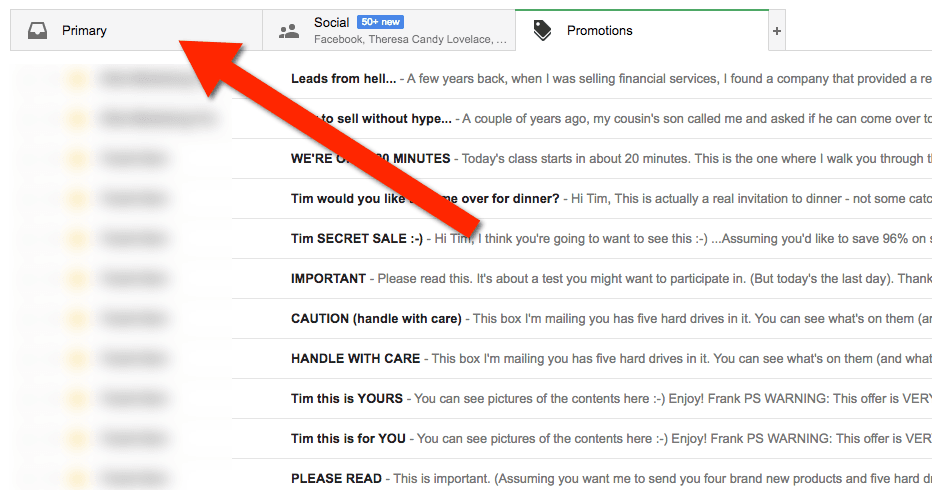
- Go to your inbox and locate the email from Tim Erway. The email might be under your "promotions" tab.
- Click and drag it into the "Inbox" folder to receive all our goodies.
- Click "Yes" to whitelist all my future emails.
Yahoo Users
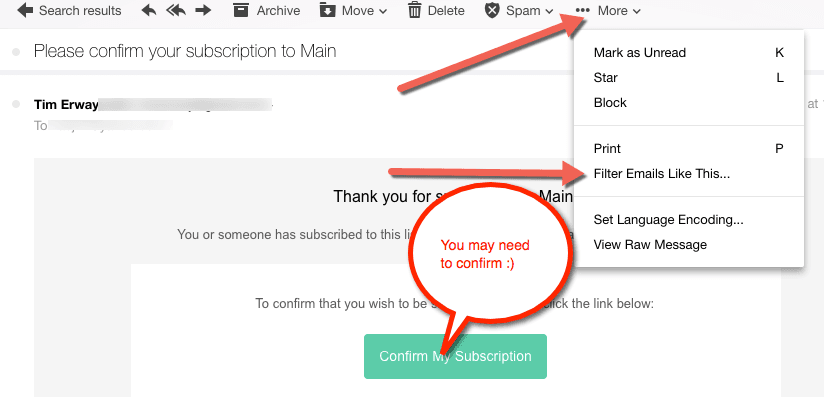
- Locate the email from Tim Erway.
- Click on the "More" in the task bar right above the email.
- Click on "Filter Emails Like This."
- Select Inbox as the folder to deliver the email to.
- Click Save and then click Save again.
Apple Mail for OS X
- First, if email from tim@timerway.com ends up in your junk folder, highlight or open it and click "Not Junk" at the top of your screen.
- Go to Mail > Preferences from your Mail menu. Go to the Rules tab.
- Select Add Rule. Give this rule a name such as "Tim Erway."
- Create a rule that says "If any of the following conditions are met: 'From' 'Contains'" and then paste in "tim@timerway.com."
- From the actions, select "Move message" to mailbox "Inbox."
- Click "OK."
Microsoft Outlook Users
- On the Tools menu, click Options.
- On the Preferences tab, click Junk E-mail.
- On the Safe Senders tab, click Add.
- Add tim@timerway.com where it says "Add address."
- Click OK.
For Other Users
Yeah, I could probably write more instructions on this page, but my poor fingers are tired.
But I'm guessing if you ask the Almighty Oracle (A.K.A. Google), she'll point you in the right direction and show you how to ensure I make it to your inbox.